Properties Panel
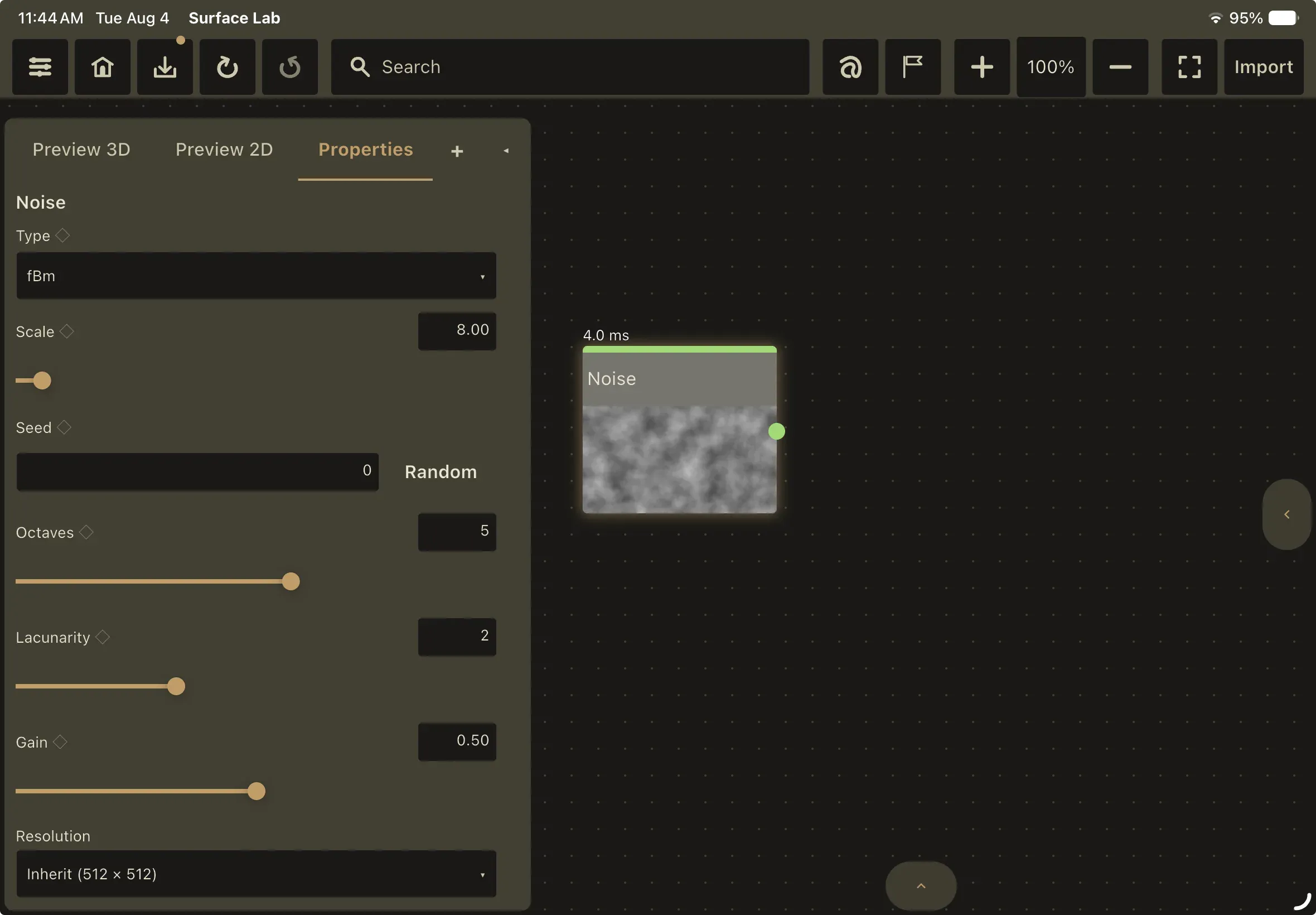
The Properties panel shows the parameters of the selected node as live controls, chosen automatically from each parameter’s type.
Control types
Section titled “Control types”| Control | Used for |
|---|---|
| Dropdown | Any parameter with named choices: blend modes, shape types, channel selectors, output-select modes |
| Slider + decimal field | Floating-point parameters |
| Stepped slider + integer field | Integer parameters |
| Seed field + Random button | Seed parameters (64-bit integers) |
| Color editor | A red/green/blue parameter triple, collapsed into one control |
| Toggle | Boolean parameters |
Parameters can be conditional: multi-mode nodes (the unified Noise generator, the Flood Fill family) carry the union of every mode’s controls and only show the ones relevant to the mode you have selected.
The color editor
Section titled “The color editor”The shared color control is a saturation/value square, a hue bar, and a hex field. Drag on the square to pick saturation and brightness, drag the hue bar to change hue, or type a hex value directly. The square lets you see the color you are reaching for rather than solving for it one channel at a time.
Two related controls look different: Settings → Appearance uses hex fields for theme tokens, and the comment recolor dialog uses an HSV wheel rather than a square.
Specialist editors
Section titled “Specialist editors”Some nodes replace the generic controls with a purpose-built editor.
Curve editor (Curves node)
Section titled “Curve editor (Curves node)”- Press anywhere on the pad to add a point, inserted in x order.
- Drag any point in both axes; its x is clamped between its neighbors so the ordering can never flip.
- Drag a point off the pad to delete it. It hollows out as a warning and is removed on release. A minimum of two points always remains.
- The input’s luminance histogram is drawn behind the curve, and the diagonal marks identity.
- The drawn curve is exactly the curve that gets applied; the preview uses the same smooth interpolation the renderer bakes.
Gradient editor (Gradient Map node)
Section titled “Gradient editor (Gradient Map node)”- Double-click the bar to add a stop at that position; it picks up the ramp’s current color there, so the gradient does not jump.
- Drag a chip along the strip to move a stop (clamped between its neighbors); drag it off the strip to delete it (it flags red first, minimum two stops).
- Below the bar is a stop list: color swatch, hex value, editable position, and a per-row delete. Tapping a swatch opens the full color editor for that stop.
Histogram editor
Section titled “Histogram editor”A live histogram with a draggable low/high window drawn directly on the plot. Drag an edge bar to move it (the other stays pinned); drag the shaded body to slide the whole window. It backs three nodes, with slightly different meanings:
- Histogram: the window is the output band.
- Histogram Scan: the window is the soft-threshold ramp.
- Histogram Range: same as Histogram.
Levels editor
Section titled “Levels editor”A Photoshop-style Levels control replacing the node’s raw sliders. Top to bottom: the input’s luminance histogram with the node’s output distribution overlaid as a comparison outline; the input strip with draggable black, gamma and white handles; 0 to 255 readouts; the output gradient bar with its own two handles; and Auto / Reset. The gamma handle maps exponentially: centered is 1.0, toward black brightens midtones, toward white darkens them.
Trim sheet editor
Section titled “Trim sheet editor”One fill slider per strip, with a percentage readout showing each strip’s normalized share of the sheet among the strips actually in use.
Custom shader editor
Section titled “Custom shader editor”A GLSL editor available both inline in the panel and as a full modal, with syntax highlighting, a line-number gutter, and live compiler diagnostics. Editing the source re-derives the node’s ports, so adding or removing an input can drop connections; when that happens you get a toast such as 2 connections dropped, the port it was wired to no longer exists. See Shader Editor and Diagnostics.
Text node editor
Section titled “Text node editor”Text content plus a font picker covering the app’s embedded fonts and the fonts installed on the device.
Draw modal
Section titled “Draw modal”A full-surface drawing canvas with a pencil, an eraser, a brush-size slider and a color panel. The node’s own input is shown behind what you draw, so you are drawing on top of what the graph actually produces rather than on an empty square.
Image node
Section titled “Image node”Shows the current file name and a Browse… button. Picking a file copies its bytes into the project’s media store, so the image embeds into the archive when you save; the node references the embedded copy, not the original path on disk.
Per-node resolution and bit depth
Section titled “Per-node resolution and bit depth”Below a node’s parameters, most nodes carry their own Resolution and Bit Depth dropdowns. Both name what the node currently resolves to, so the selected row reads as a value rather than a mode.
Resolution
| Choice | Meaning |
|---|---|
| Inherit (n × n) | Use the project resolution, shown in the label |
| Match input (w × h) | Take the resolution arriving on the node’s inputs, shown in the label |
| 256 × 256 … 8192 × 8192 | Pin this node to a fixed square |
The fixed ladder is 256, 512, 1024, 2048, 4096 and 8192. On iOS and Android it stops at 4096, and a project authored at 8192 on desktop is clamped to 4096 when it opens there. A value above the cap that is already on the node stays in the list so the field never misreports what the node is set to.
Bit Depth
| Choice | Meaning |
|---|---|
| Absorb inputs (depth) | Default. Take the depth arriving on the inputs, so an override travels downstream |
| Inherit project (depth) | Use the project bit depth |
| 8-bit / 16-bit / 32-bit float | Pin this node to a fixed depth |
Export validates against the depth a node resolves to.
Undo behavior
Section titled “Undo behavior”Every parameter edit gesture pushes exactly one undo step. Consecutive edits to the same parameter within a short window, such as the ticks of a slider drag, share one snapshot, so undoing a drag undoes the whole drag rather than one pixel of it. Editors with a batch action (Levels’ Auto and Reset) push a single snapshot for the whole set of changes.
Exposing parameters (the ◇ toggle)
Section titled “Exposing parameters (the ◇ toggle)”Next to every parameter name is a small diamond. Hollow ◇ means not exposed; click to expose. Filled ◆ means exposed; click to unexpose.
Exposed parameters appear in the Global Variables panel (the Globals tab) with the same live controls, so key values from anywhere in the graph can be edited in one place. Exposures are saved into the project archive, and entries whose node has been deleted are pruned automatically. See Exposed Parameters for the full behavior.
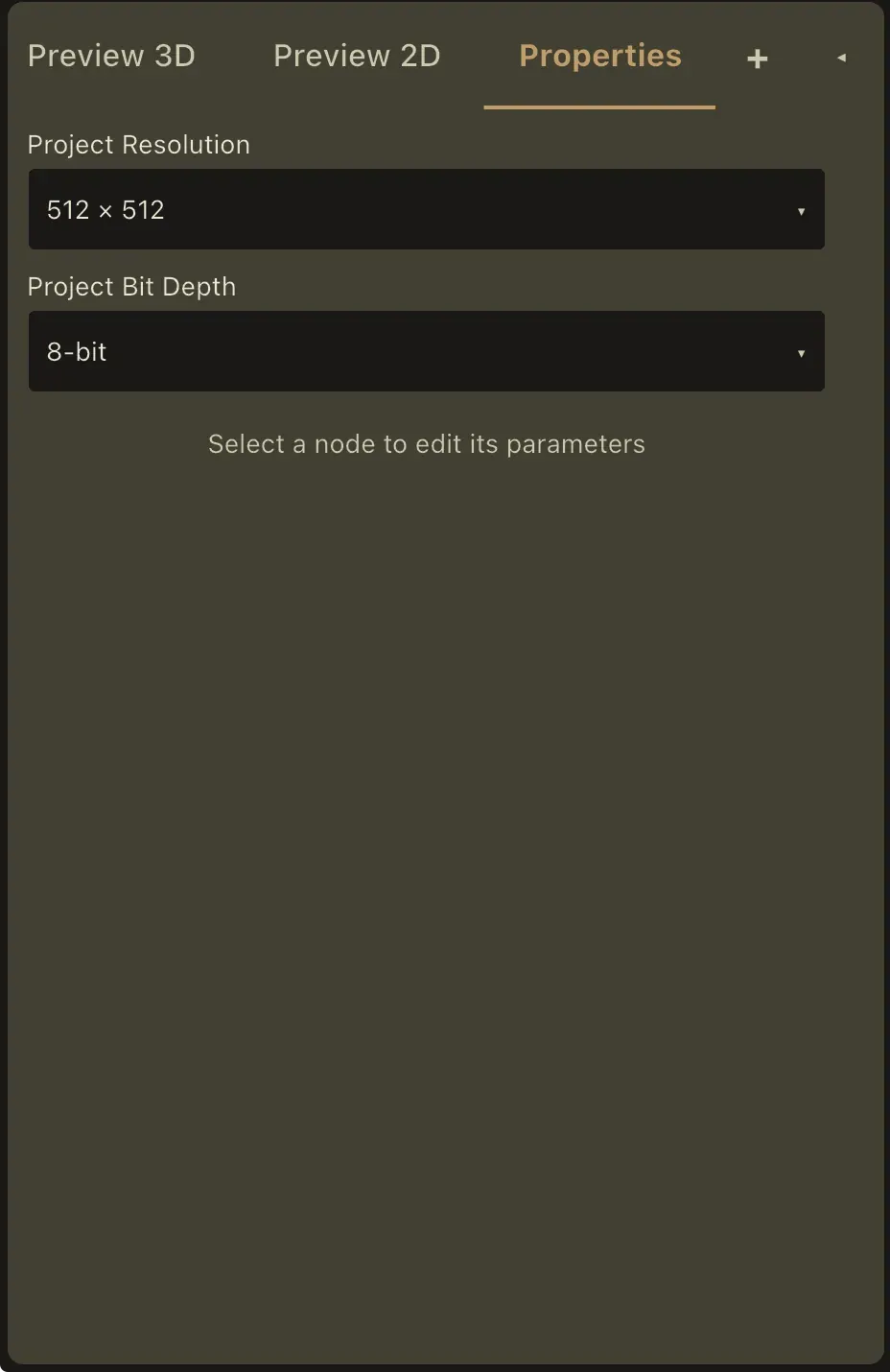
With nothing selected
Section titled “With nothing selected”The panel shows project-level settings instead:
- Project Resolution dropdown, drawing on the same ladder and the same 4096 cap on iOS and Android
- Project Bit Depth dropdown: 8-bit, 16-bit or 32-bit float
- The hint Select a node to edit its parameters