Project Hub
The Project Hub is the first interactive screen after the splash. Opening a project replaces the hub with the editor; Back to Hub in the editor replaces it back.
The hub is made of two panels: a navigation panel with the app-level actions, and the projects area, organized into shelves. Like the editor’s panels, where these render on screen is your choice, so this page describes what each panel contains rather than where it sits.
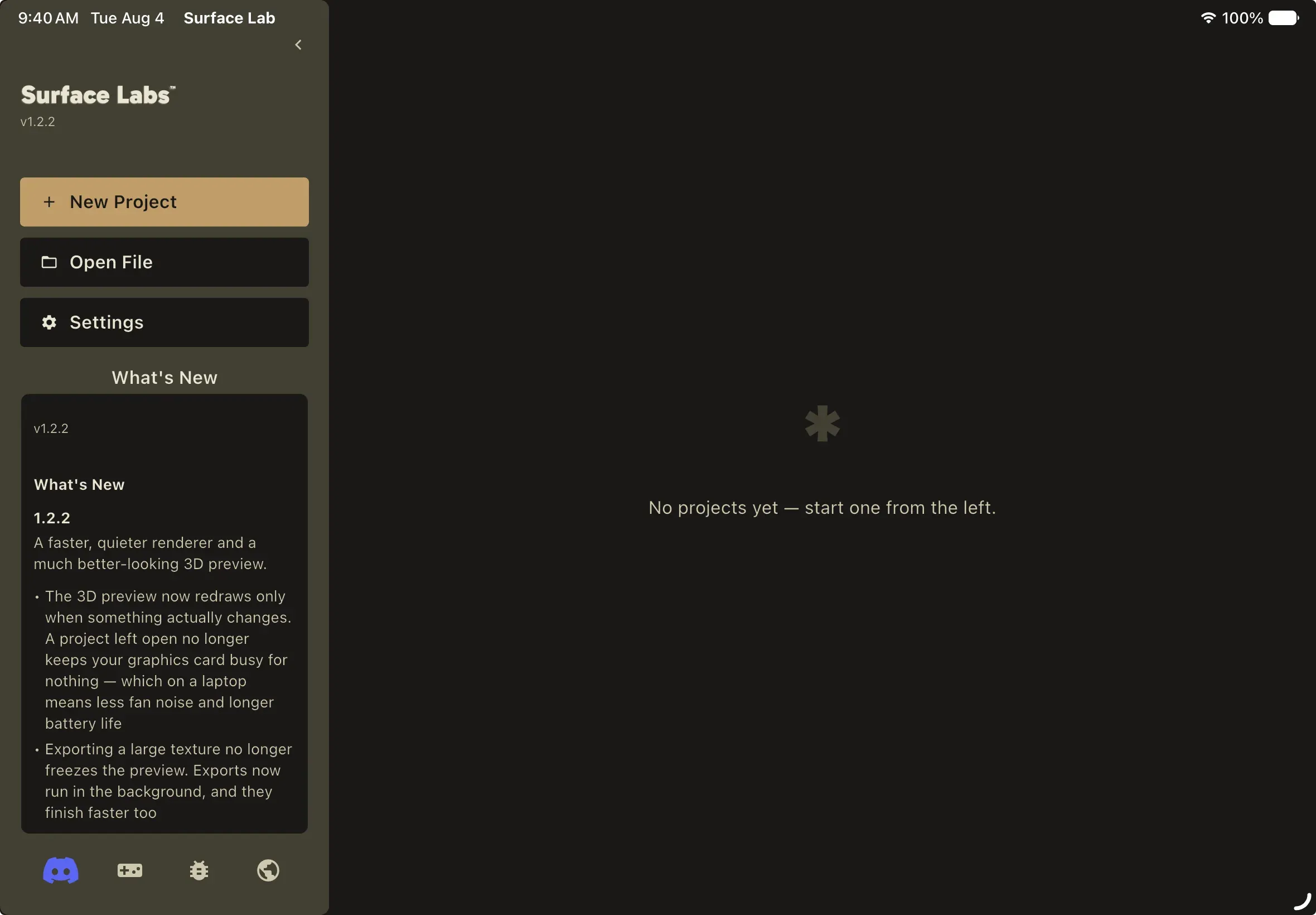
The navigation panel
Section titled “The navigation panel”A chevron at the top of the panel collapses it to an icon-only mini state; the same chevron expands it again. It contains:
- The Surface Labs mark and the running version number.
- New Project, which opens the inline creation form in the projects area.
- Open File, a native open dialog filtered to
.surfacelabs. - Settings, which opens the Settings window.
- What’s New, an inset card showing the bundled changelog for the current version, rendered as headings, paragraphs and bullet lists. It is read from a file inside the app; nothing is fetched from the network.
- Social links: Discord, the itch.io store page, and the public GitHub repository. A website link also exists but currently points at a placeholder address that is not a real site.
Shelves
Section titled “Shelves”The projects area is organized into shelves: named, collapsible groupings of project cards.
- Recents is built in and always first, laid out as a horizontal carousel, most-recently-modified first. Membership is computed, not editable.
- Favorites is a normal, fully editable shelf that ships pre-created.
- Library is built in and always last, laid out as a grid, alphabetical, containing every project the app knows about. Membership is computed.
- Any shelves you create sit between Recents and Library, and can be reordered by dragging.
Each shelf has a collapse toggle and a carousel/grid display toggle. A shelf toolbar sits above them all: + New Shelf, Collapse All / Expand All (the label flips depending on the current state), and a search field. Deleting a shelf asks Delete shelf? first; the projects stay in your library, only the grouping is removed.
Search uses fuzzy subsequence matching on the project name, so prj finds
“Procedural Rocks Jagged”. A tag filter strip sits alongside it. Selected
tags are combined with AND (picking stone then wip narrows to projects
carrying both), and the tag filter and the search text also combine with AND.
Project cards
Section titled “Project cards”Each card is roughly 280 by 320 points: a thumbnail on top and a metadata strip below with the project name, a relative last-modified time (“2 hours ago”), a truncated path and the file size. The thumbnail comes from the project’s cached output-node render, cropped to fill; if no render is cached it silently falls back to the app icon. Thumbnail failures never show an error.
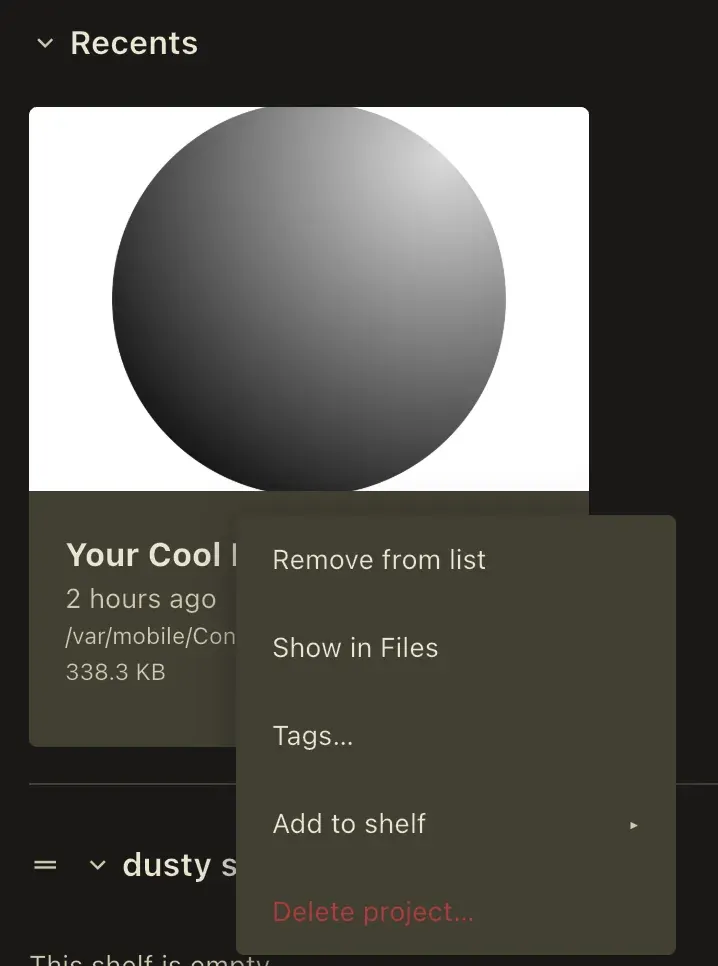
Tap or click a card to open it. Right-click (desktop) or long-press (touch) opens a context menu:
- Remove from list forgets the project without touching the file.
- Show in Explorer / Show in Files reveals the archive in the system file browser.
- Delete project… permanently deletes the
.surfacelabsfile, gated behind a Delete project? confirmation that states the action cannot be undone. - Add to shelf is a fly-out listing every user shelf the project is not already on.
- Remove from shelf appears only when the card is being shown inside a user shelf, and asks for confirmation.
- A tag picker for the project’s tags.
If the file behind a card is not where the hub last saw it, opening it repairs the path first. This is what keeps projects from disappearing on iPad, where the system relocates the app’s Documents container: the stored pointer goes stale, but the file is still there under the new container and the repaired path finds it. The same repair runs over the whole list and over every shelf when the hub loads.
When repair cannot find it either, the card is flagged as missing but stays in your library rather than being forgotten, and a toast explains why: Project not found — it may have been moved, deleted, or be on a drive that isn’t connected. It stays in your library. A card that can’t open today because an external drive is unplugged is not a card worth throwing away.
Creating a project
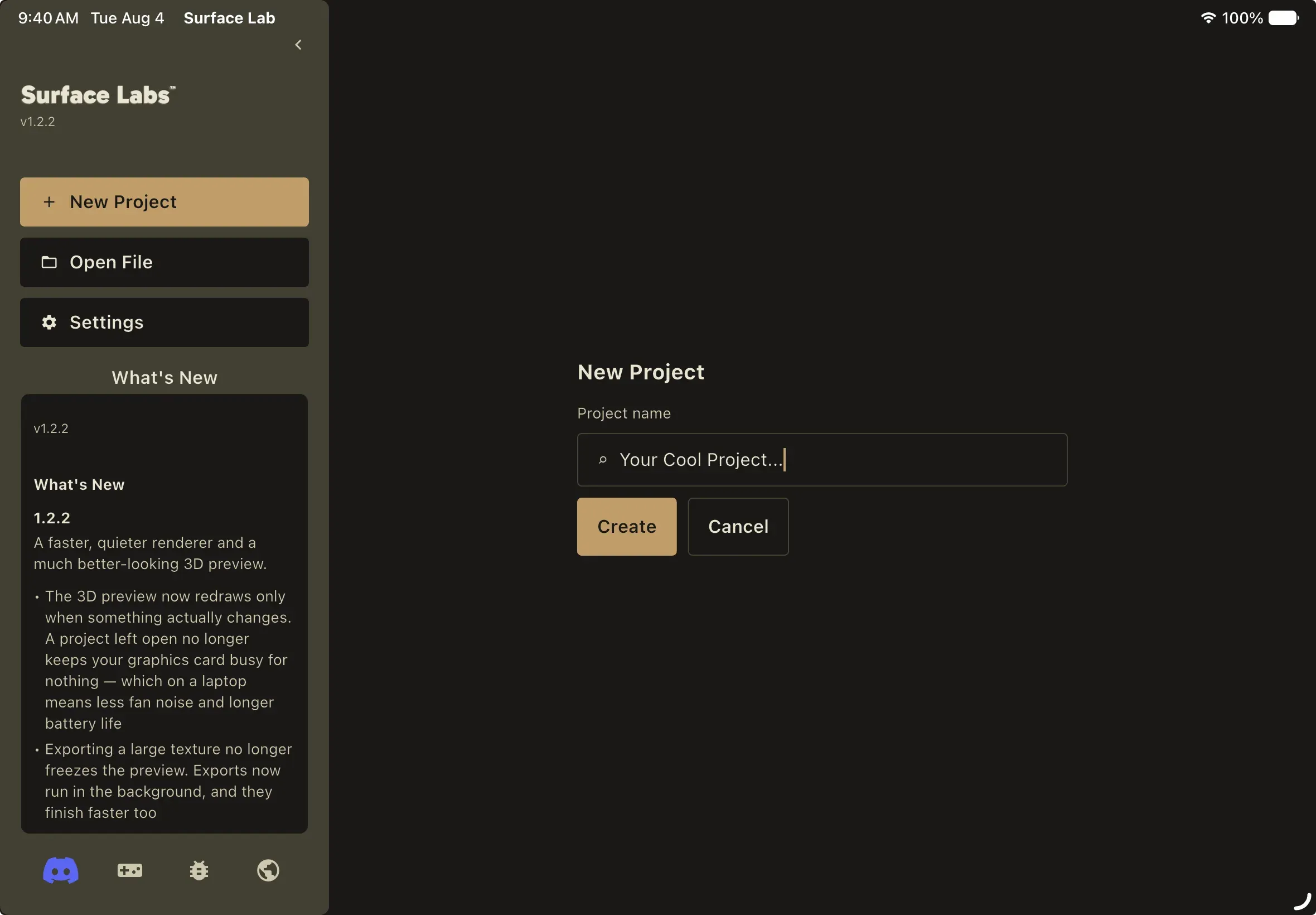
Section titled “Creating a project”New Project replaces the shelves with an inline form, not a dialog:
- Project name is a single text field. Leaving it blank shows Enter a project name. and keeps Create disabled.
- Create reads Creating… while it works. The name is slugified into a
filename, a collision-free path is resolved under
Documents/Surface Labs/, an empty project archive is written, the project is added to Recents, and the editor opens. - Cancel returns to the shelves.
If the write fails you get Could not create the project. Please try again.
The recovery shelf
Section titled “The recovery shelf”If the app finds an .autosave companion left over from an unclean shutdown, an
amber-accented strip slides in above the shelves. Restore applies the
autosave to the project and opens it. Discard deletes the autosave and
dismisses the shelf permanently. Collapse hides it for this session only; it
reappears on the next cold launch, so nothing is lost by dismissing it
accidentally.
How autosaves are written and applied is covered in Autosave and Recovery.
The crash-report notice
Section titled “The crash-report notice”Separately from the recovery shelf, if the app finds crash artifacts it has not already told you about, it posts a toast rather than a dialog. Coming back from a crash is the moment you want your project, not a modal in the way.
The toast says which run crashed:
The previous session ended unexpectedly. Export a diagnostics report to help get it fixed?
or, when the artifacts are older than the run you just came from:
An earlier session ended unexpectedly. Export a diagnostics report to help get it fixed?
Export… on the toast asks for a destination folder, writes one ZIP of the crash dumps and logs, then reveals it and reports where it landed. With nothing to bundle it says No crash report to export.
The toast lingers longer than an ordinary one, then slides away on its own. Letting it go is the answer: that crash is never offered again, on this launch or any future one. Crash artifacts more than a week old are never surfaced at all, since diagnostics that stale rarely match the build you are running.
Settings → General → Export Diagnostics… writes a diagnostics zip at any time, whether or not a crash was detected. It carries the crash dumps and session logs plus any projects that failed to load and the project you have open.